> ## Documentation Index
> Fetch the complete documentation index at: https://wwwpoc.ibm.com/llms.txt
> Use this file to discover all available pages before exploring further.
# LM Studio
> Learn how to run Granite models with LM Studio.
## Overview
In this guide, we'll be using [LM Studio](https://lmstudio.ai/) to run a Granite
model locally in few simple steps.
LM Studio is a beginner-friendly desktop application for running Large Language
Models (LLMs) and Embedding models locally on Mac, Windows, and Linux. It
provides both a familiar chat interface and a built-in local server for using
models programmatically in your code. The app features easy model browsing and
downloading from Hugging Face, plus the ability to chat with PDF and Word
documents.
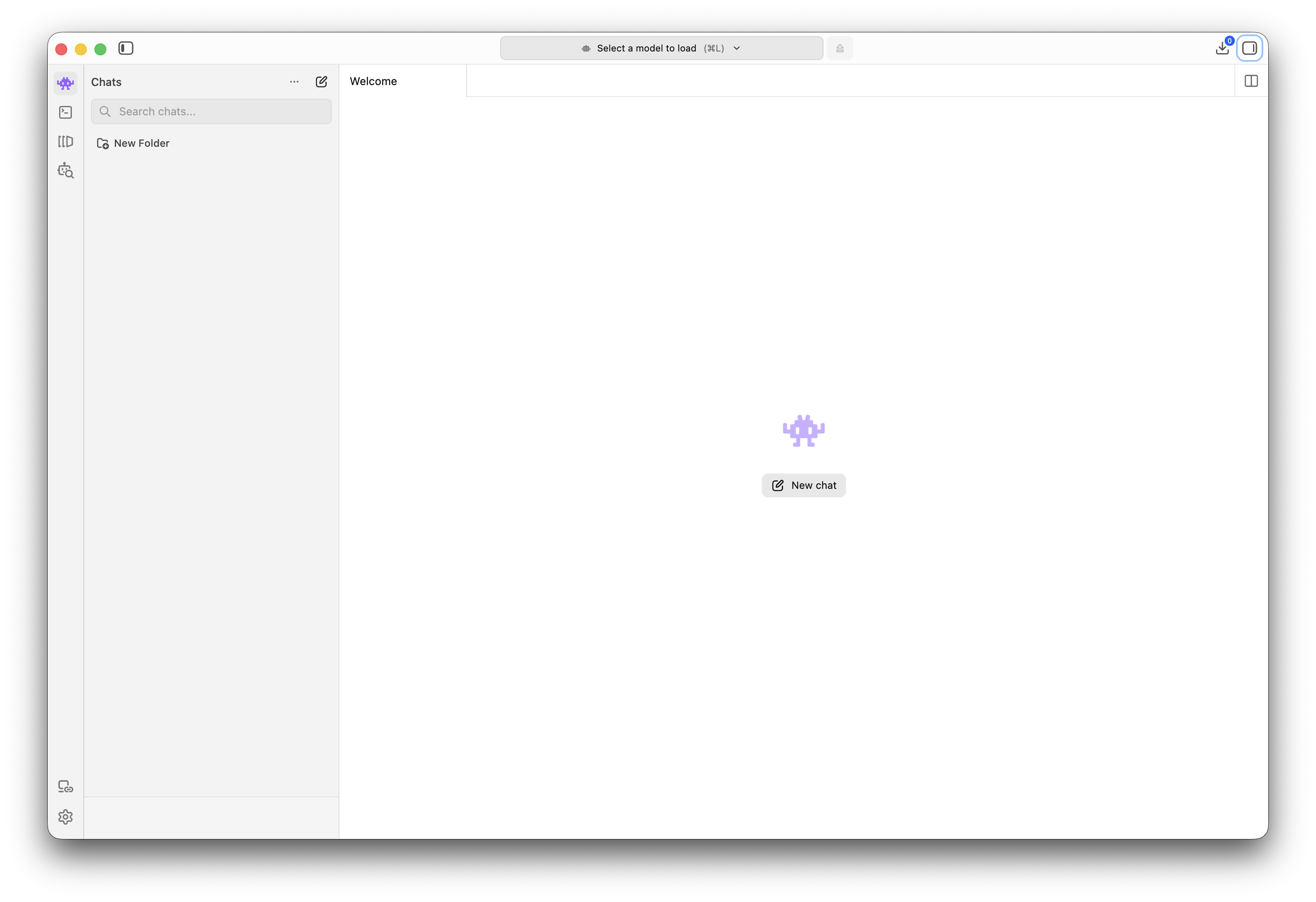
## Step 1: Download and start LM Studio
Visit [https://lmstudio.ai](https://lmstudio.ai) and download the latest version of LM Studio
compatible with your operating system. Once the download is complete, install
and launch the application.
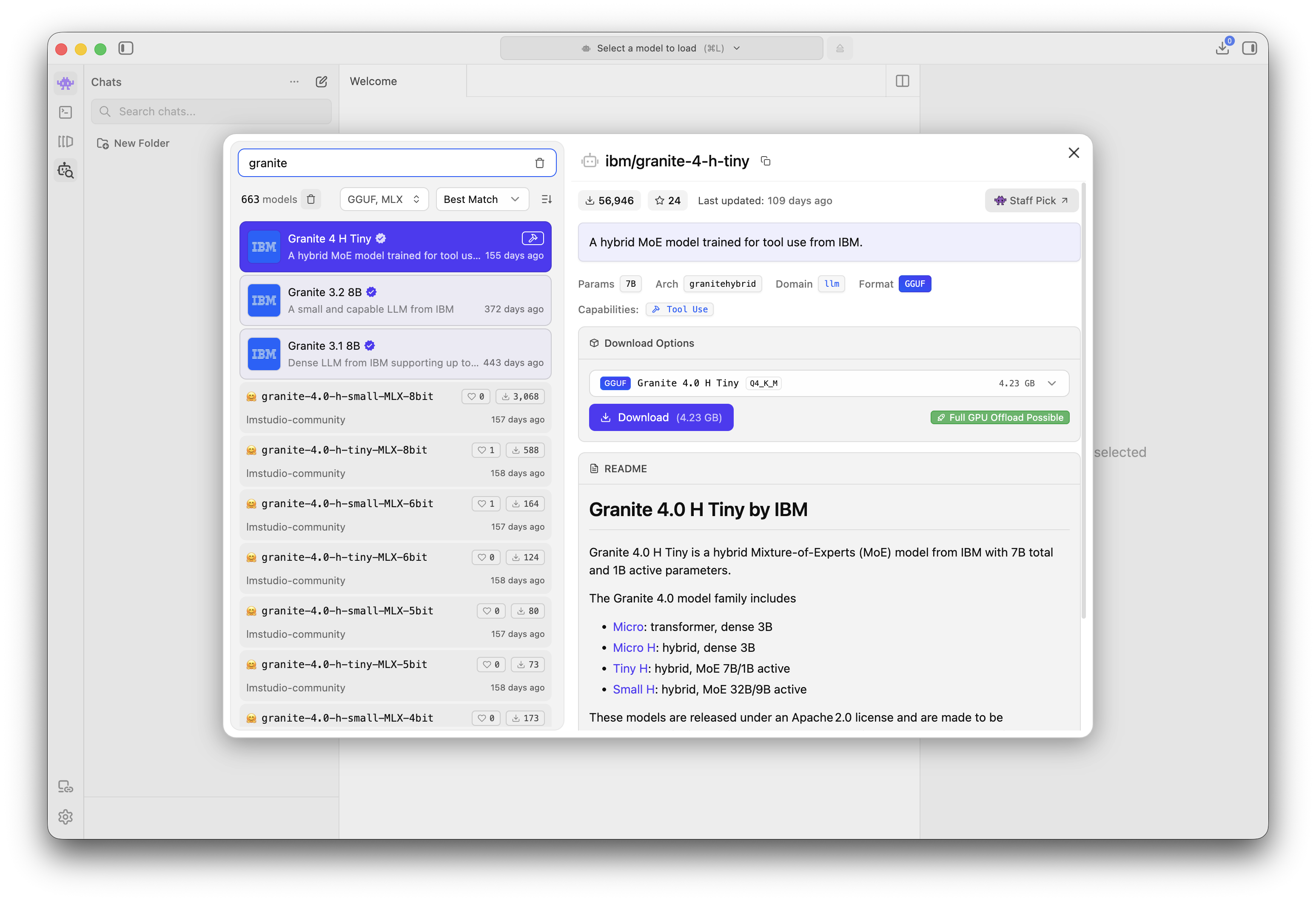
 ## Step 2: Search and download Granite
Use the search bar in LM Studio to find Granite. A list of compatible models
will be displayed. In this guide, we will select and download the Granite 4 H Tiny
model. Please note that this is a large file, so the download may take some time
to complete.
## Step 2: Search and download Granite
Use the search bar in LM Studio to find Granite. A list of compatible models
will be displayed. In this guide, we will select and download the Granite 4 H Tiny
model. Please note that this is a large file, so the download may take some time
to complete.
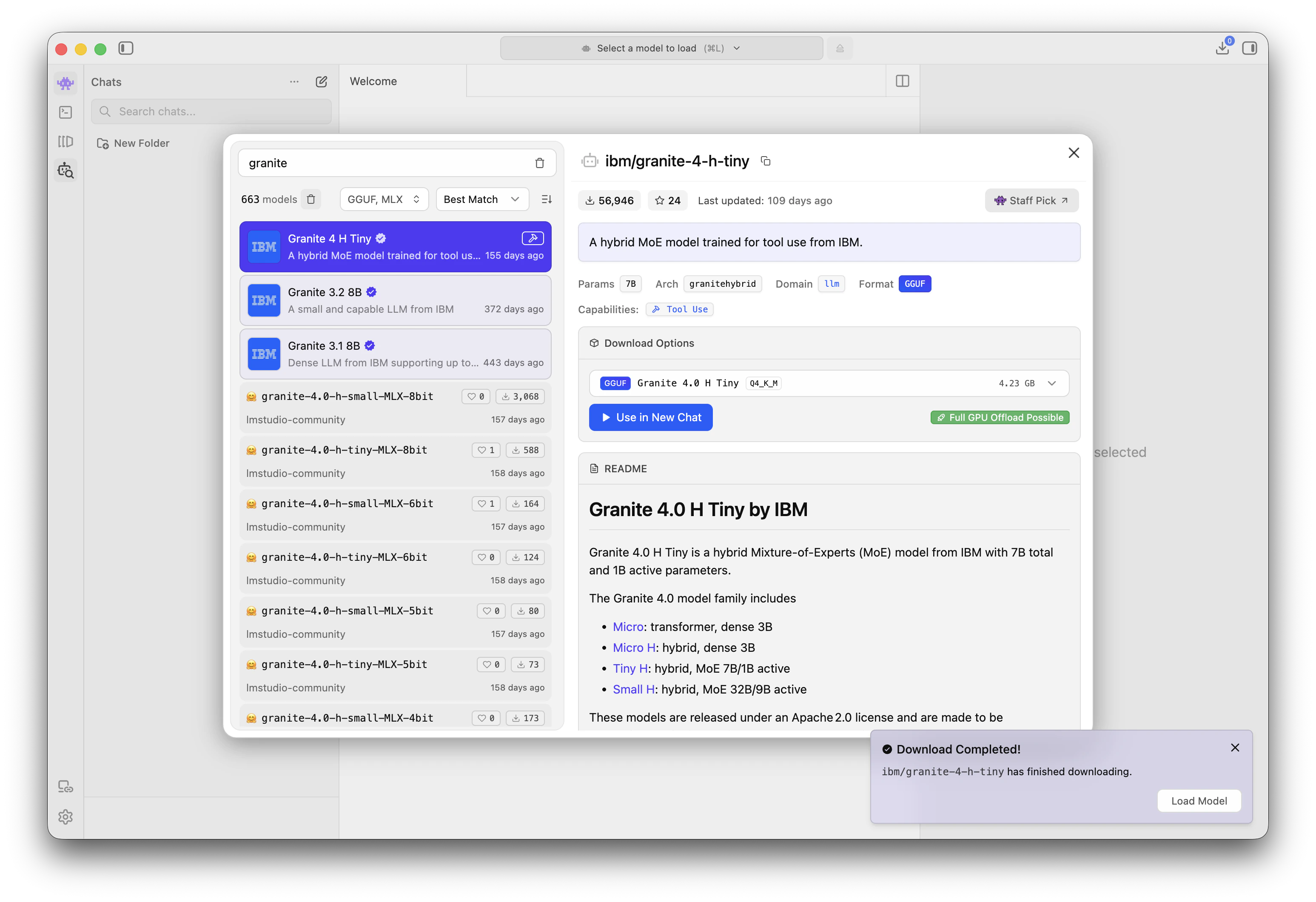
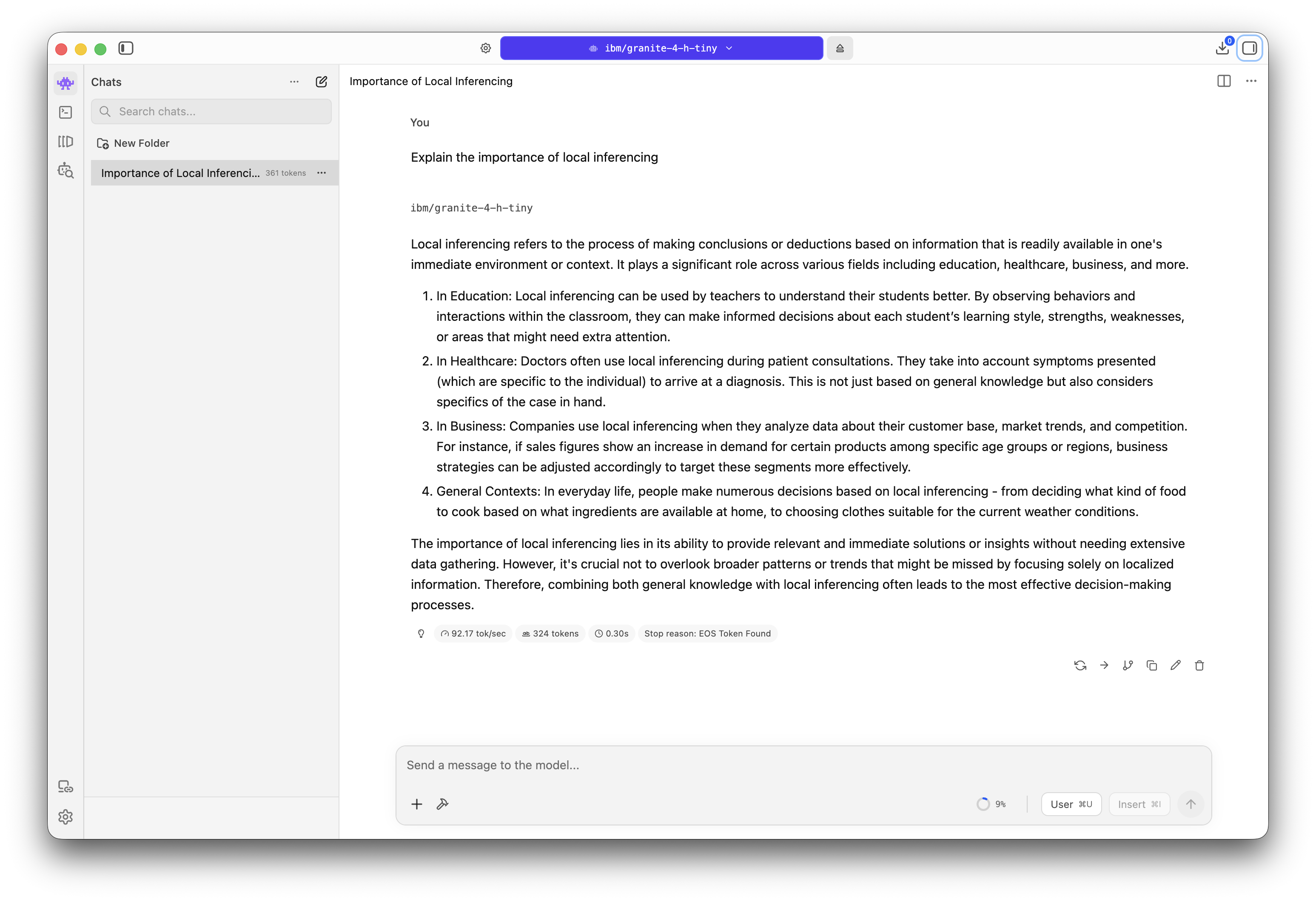
 ## Step 3: Load the model and start prompting
After the download is complete, load the Granite 4 H Tiny model in LM Studio. You
can now begin using the model by entering your prompts and exploring its
capabilities!
## Step 3: Load the model and start prompting
After the download is complete, load the Granite 4 H Tiny model in LM Studio. You
can now begin using the model by entering your prompts and exploring its
capabilities!
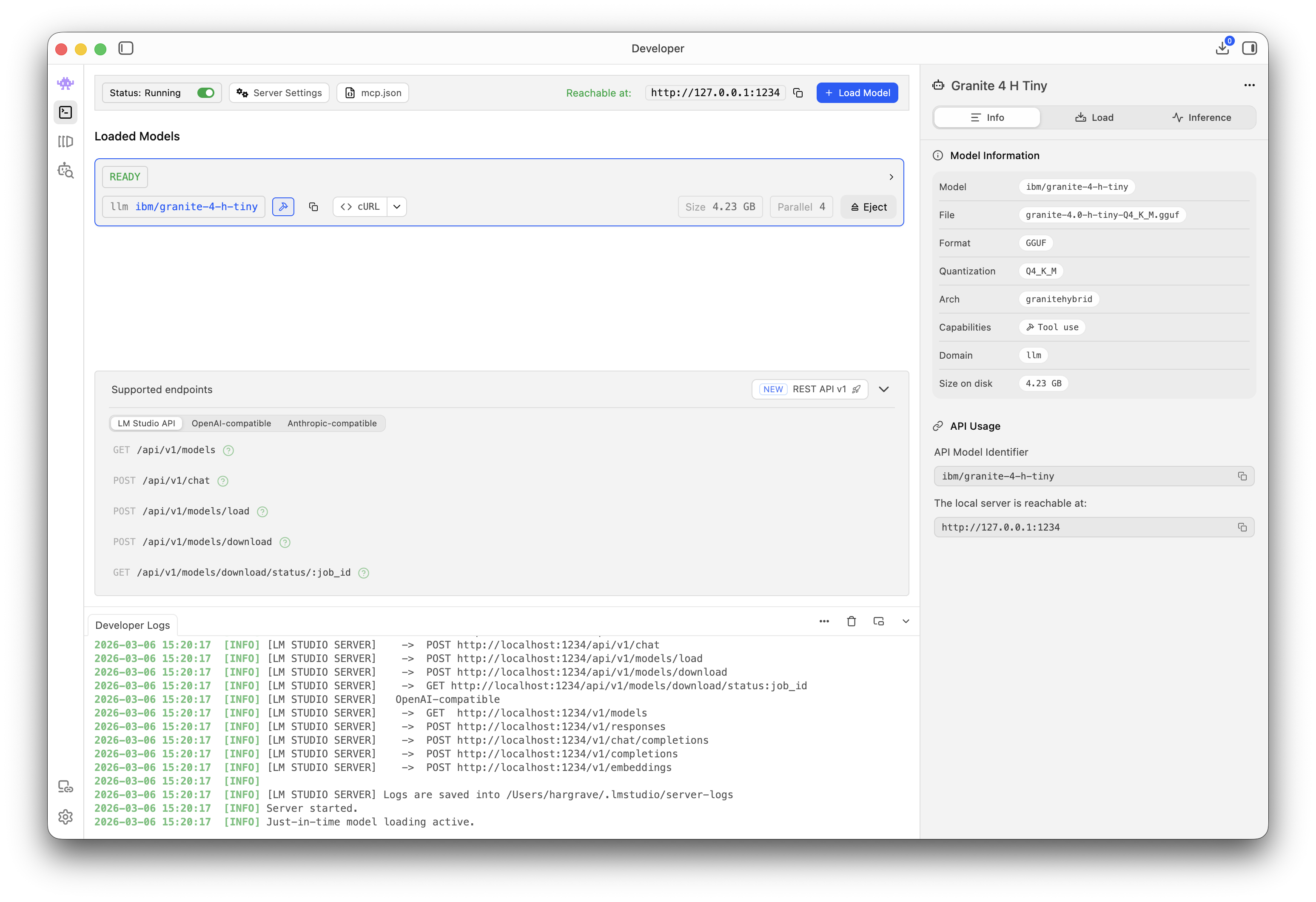
 ## Step 4 (advanced): Tap into the developer settings
Head over to the developer tab (underneath the chat tab) to easily manage a
local LLM server running on localhost, or on your local network. Press Ctrl /
Cmd + L to open the model loader. You can load one or more models into memory
and tweak their settings such as context length, GPU offload amount, or default
system prompt.
Once you load models into memory they will be accessible via an OpenAI-like
interface. Read more about this in
[LM Studio docs](https://lmstudio.ai/docs/api).
## Step 4 (advanced): Tap into the developer settings
Head over to the developer tab (underneath the chat tab) to easily manage a
local LLM server running on localhost, or on your local network. Press Ctrl /
Cmd + L to open the model loader. You can load one or more models into memory
and tweak their settings such as context length, GPU offload amount, or default
system prompt.
Once you load models into memory they will be accessible via an OpenAI-like
interface. Read more about this in
[LM Studio docs](https://lmstudio.ai/docs/api).